
MCP Server Management
The MCP Server Management interface allows you to add, configure, and manage Model Context Protocol (MCP) servers. This guide will walk you through the various features and operations available in the interface.Overview
The MCP Servers page displays all the available MCP servers in a grid layout. Each server card shows essential information and provides quick access to configuration options.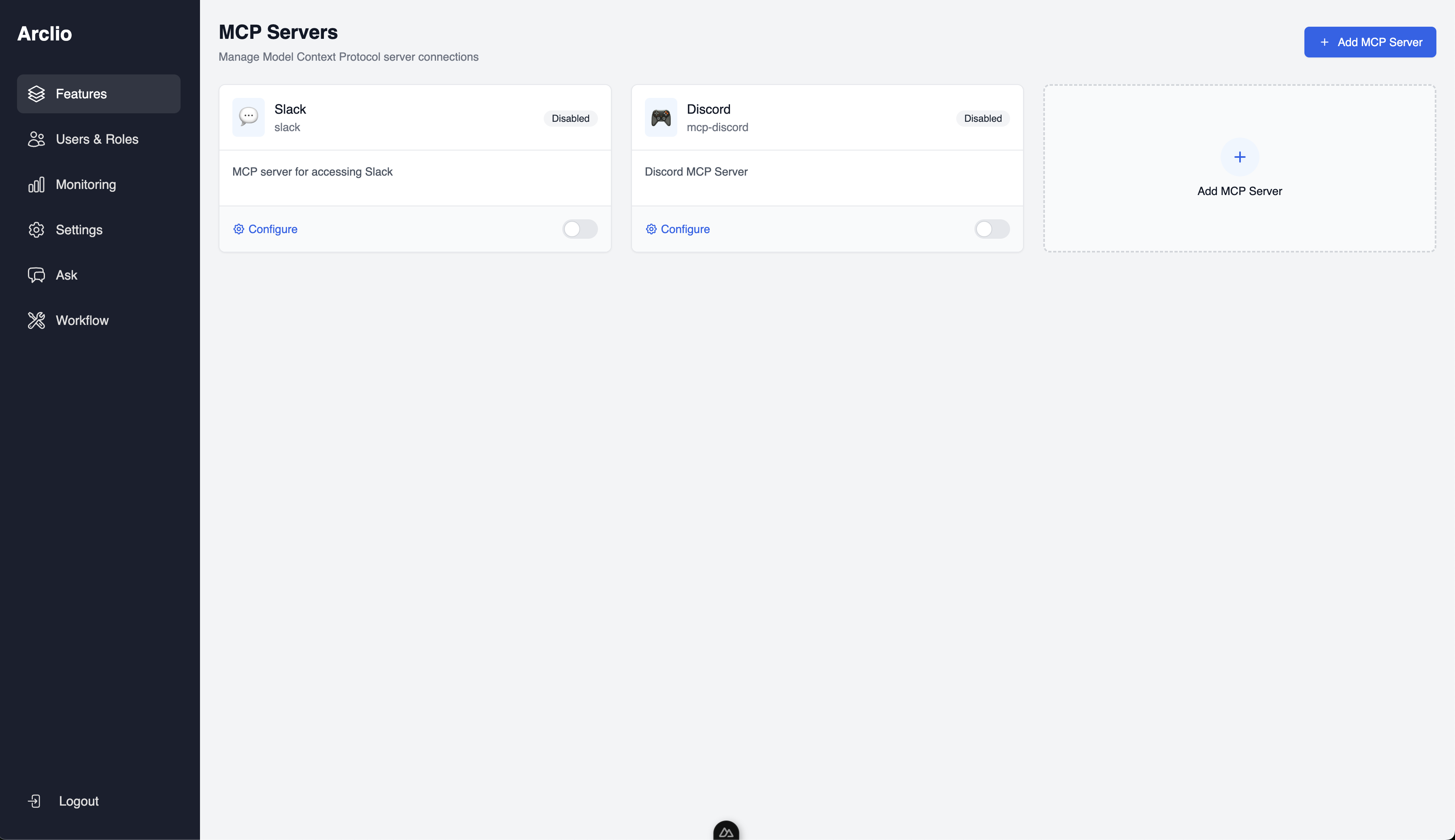
Adding a New MCP Server
Step 1: Basic Information
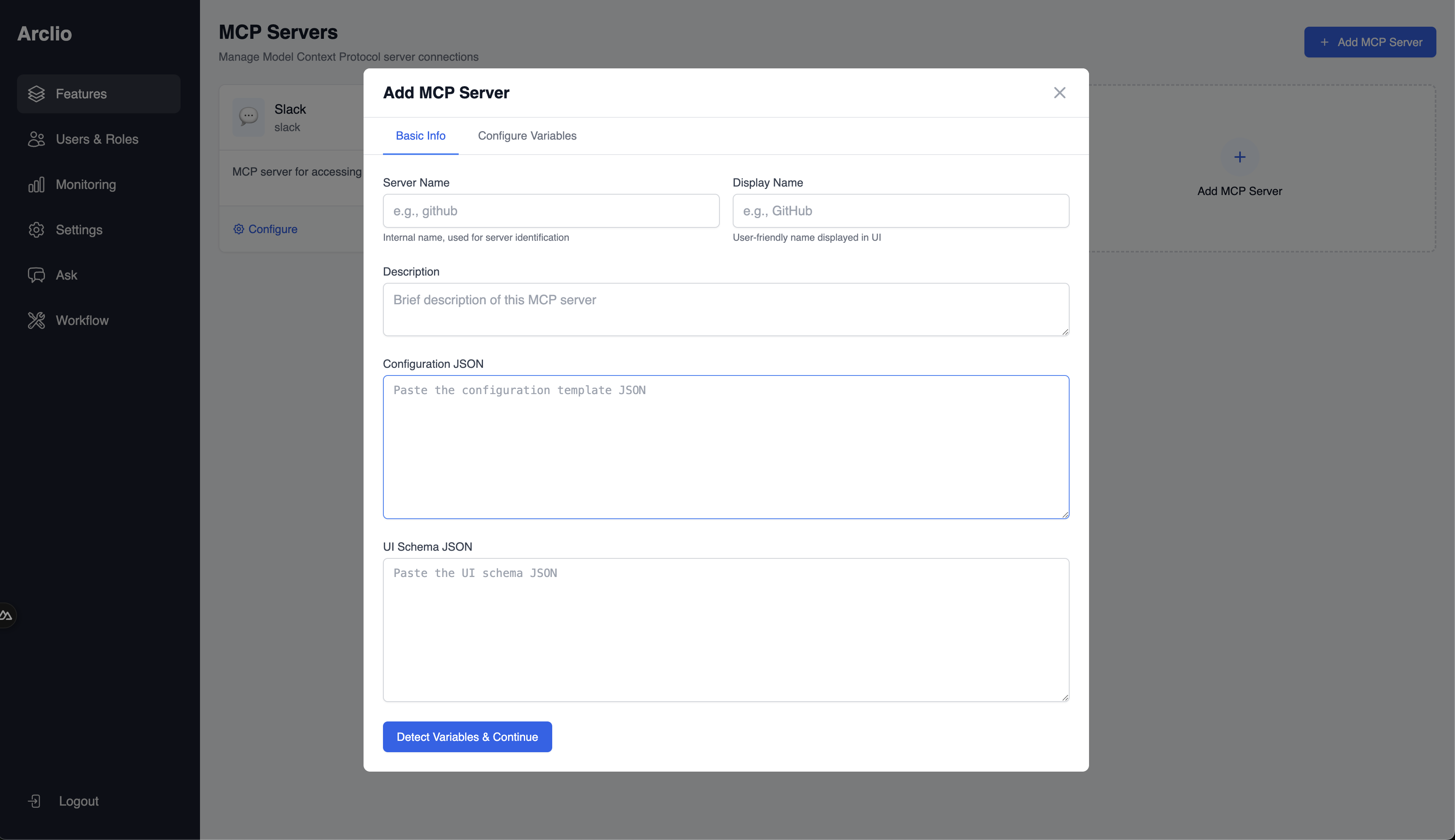
- Click the “Add MCP Server” button or the “Add MCP Server” card in the grid.
- In the modal that appears, enter the following information:
- Server Name: Internal identifier for the server (e.g., “github”)
- Display Name: User-friendly name shown in the UI (e.g., “GitHub”)
- Description: Brief description of the server’s functionality
Step 2: Configuration Template
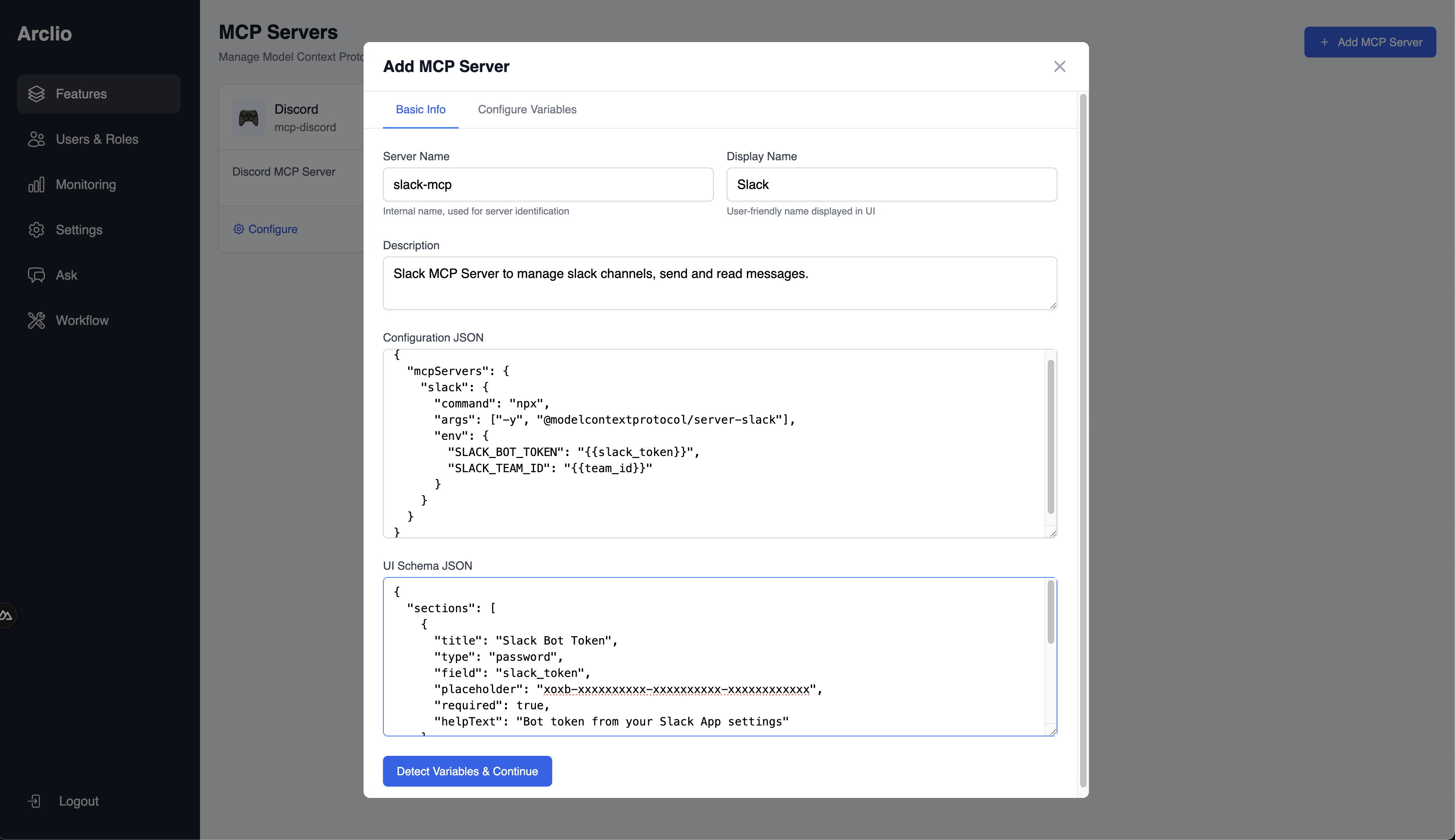
- Paste the MCP server configuration JSON template in the dedicated field. This template defines how the server will be started and what environment variables it needs.
{{variable_name}} placeholders, which will be replaced with actual values when configuring the server.
Step 3: UI Schema
- Paste the UI schema JSON in the dedicated field. This schema defines how the configuration form will be rendered to users.
- Click “Detect Variables & Continue” to proceed to the next step.
Step 4: Configure Variables
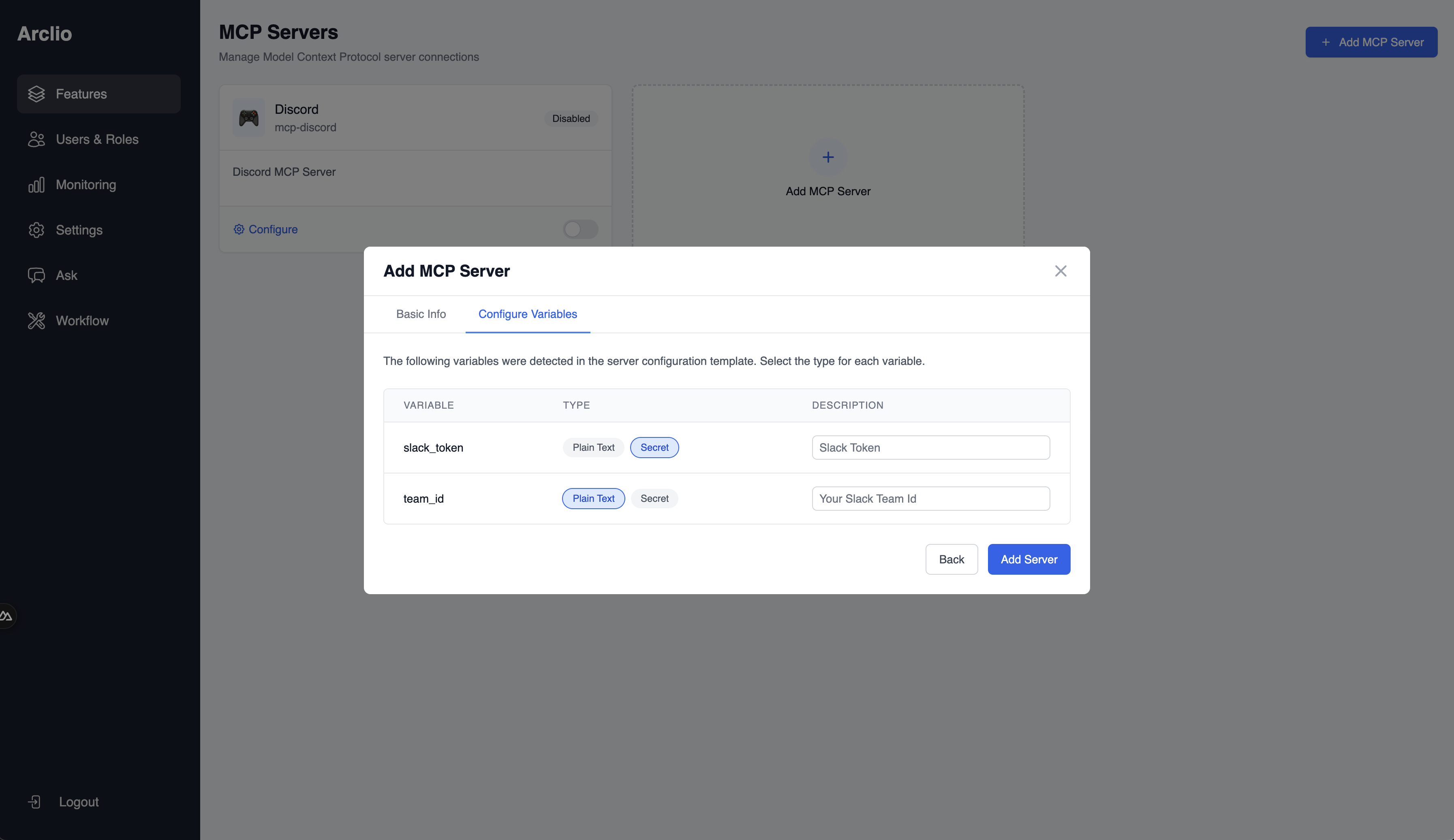
- The system will automatically detect variables from your configuration template.
- For each variable, select the appropriate type:
- Plain Text: For non-sensitive data
- Secret: For sensitive data (passwords, tokens, keys)
- Optionally, add a description for each variable.
- Click “Add Server” to create the MCP server.
Managing Server Configurations
Each MCP server can have multiple configurations, but only one can be active at a time.Viewing Configurations
- Click on a server card to open its configuration modal.
- The “Configurations” tab shows all saved configurations for the selected server.
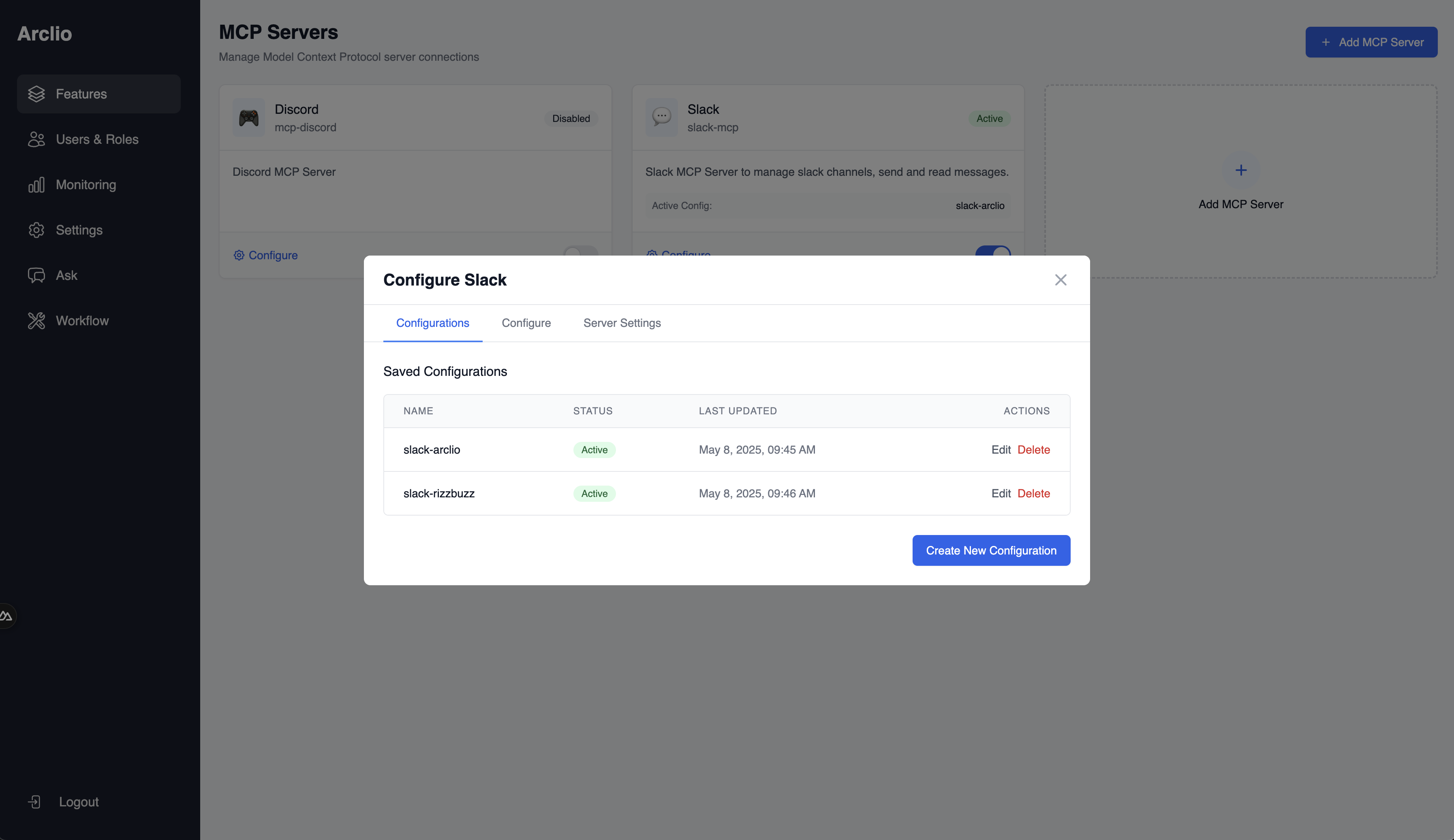
Creating a New Configuration
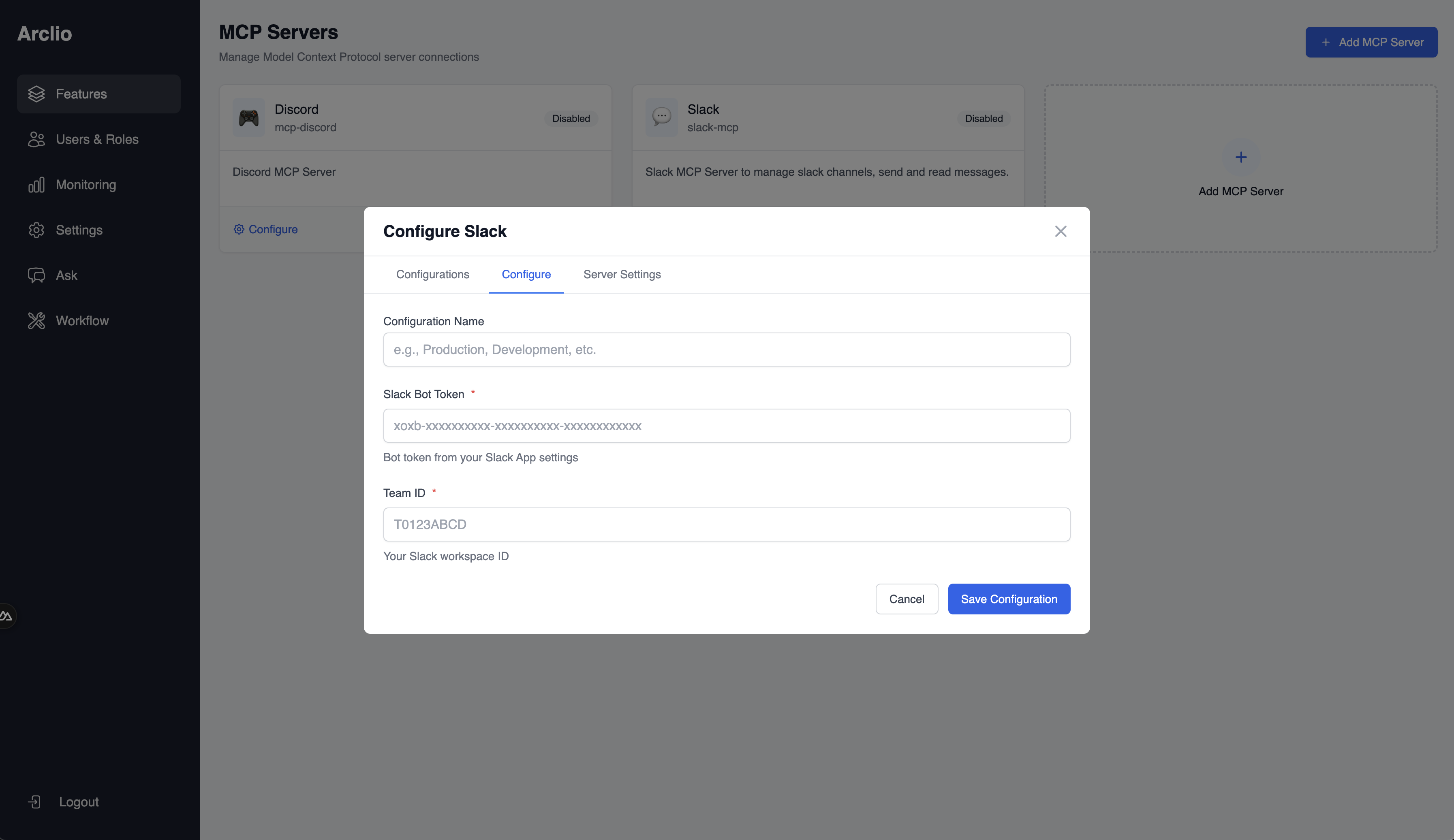
- In the server configuration modal, click “Create New Configuration”.
- Enter a name for the configuration (e.g., “Production”, “Development”).
- Fill in the required fields in the dynamically generated form based on the UI schema.
- Click “Save Configuration” to save.
Activating a Configuration
- In the Configurations tab, find the configuration you want to activate.
- Click the “Activate” button next to it.
- The system will deactivate any currently active configuration and activate the selected one.
Editing a Configuration
- In the Configurations tab, click the “Edit” button next to the configuration you want to modify.
- Make your changes in the form.
- Click “Update Configuration” to save.
Deleting a Configuration
- In the Configurations tab, click the “Delete” button next to the configuration you want to remove.
- Confirm the deletion in the prompt.
Server Settings
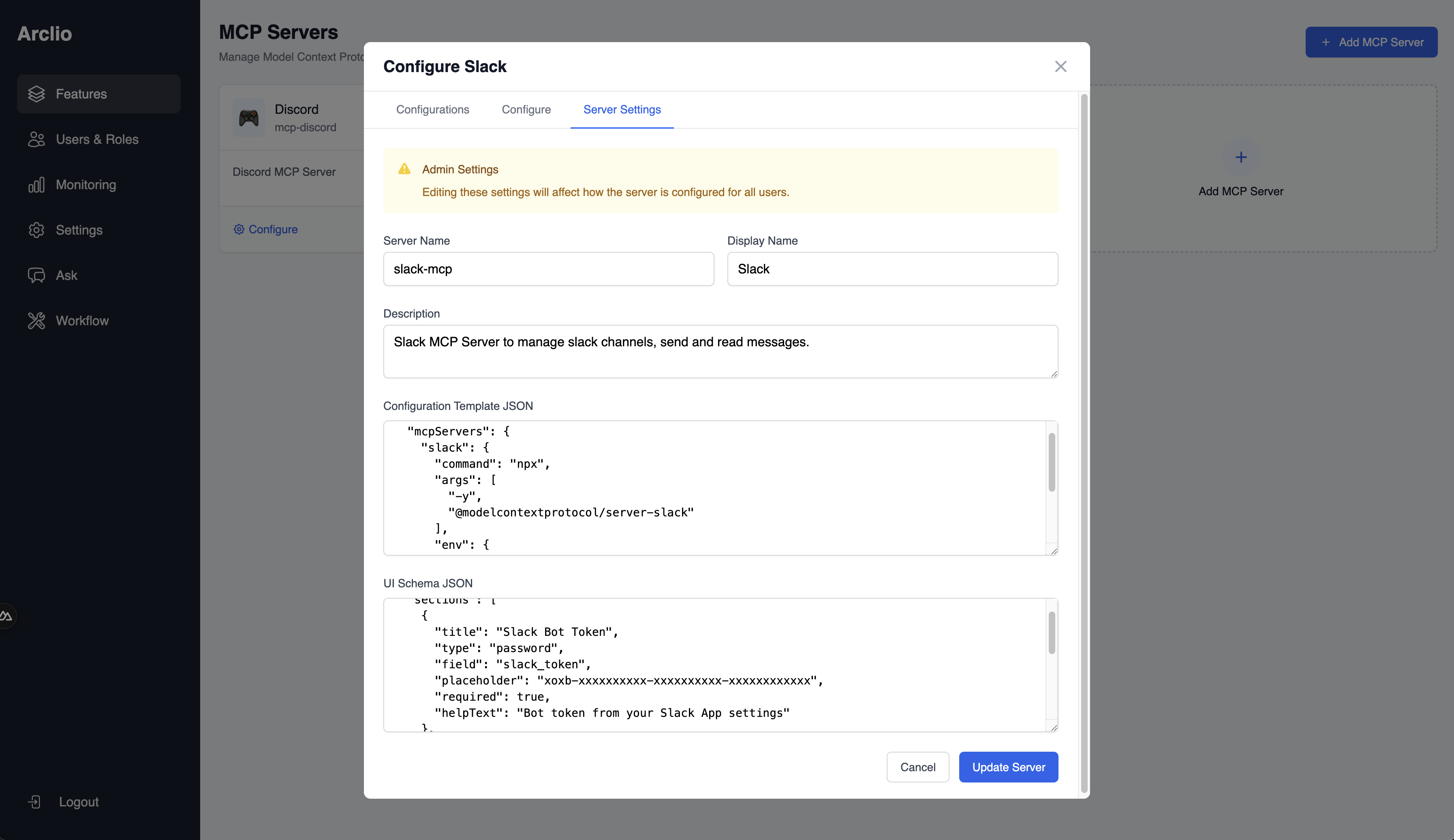
Administrators can modify server settings, including its configuration template and UI schema.- In the server configuration modal, go to the “Server Settings” tab.
- Update the server details, configuration template, or UI schema as needed.
- Click “Update Server” to save the changes.
Supported UI Components
The UI schema supports several component types for building configuration forms:Text Input
Password Input
Text Area
Radio Buttons
Status Message
Instructions Block
Numbered Steps
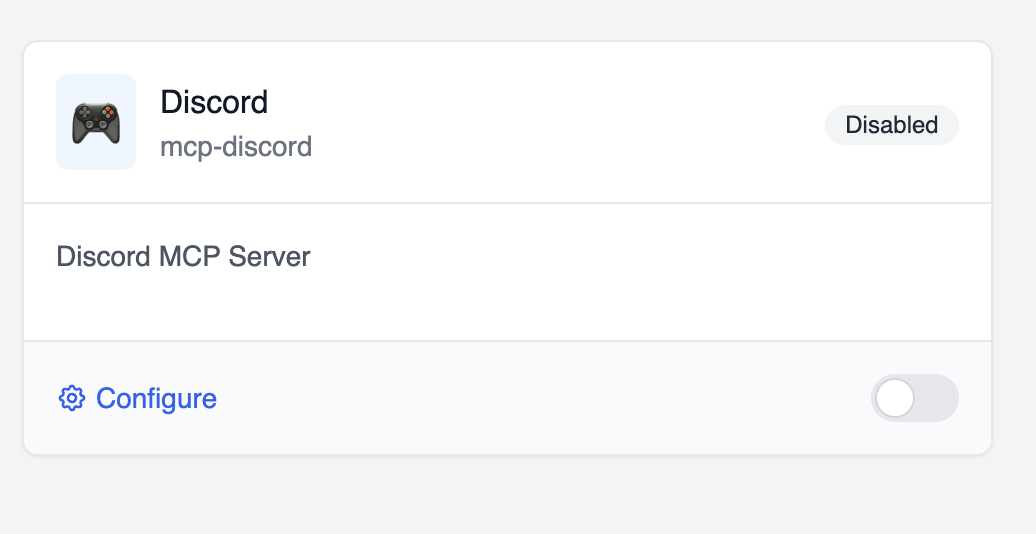
Enabling/Disabling Servers
Each server card has a toggle switch that allows you to quickly enable or disable the server:- Enable: Activates the first available configuration for the server
- Disable: Deactivates all configurations for the server
Example: Discord Server Setup
Here’s an example of setting up a Discord server with step-by-step instructions in the UI schema:Configuration Template
UI Schema
Best Practices
- Naming Conventions: Use clear, concise names for servers and configurations
- Secret Variables: Always mark sensitive information (tokens, passwords, keys) as “Secret”
- Helpful Descriptions: Provide descriptive help text in UI schemas to guide users
- Configuration Naming: Use meaningful names for configurations (e.g., environment names, project names)
- Regular Maintenance: Review and update server configurations periodically to ensure they remain current
Troubleshooting
Server Not Connecting
- Verify that the server is enabled (toggle switch is on)
- Check that the configuration has all required variables
- Ensure that token/credentials are valid and have not expired
Configuration Changes Not Taking Effect
- Make sure to save configuration changes before closing the modal
- Check that the configuration is activated (has “Active” status)
- Refresh the page to ensure latest changes are loaded
UI Schema Issues
- Validate your UI schema JSON syntax
- Ensure field names in the UI schema match variable names in the configuration template
- Check for any required fields that might be missing